A slow smart TV,
cleaned up by Claude.
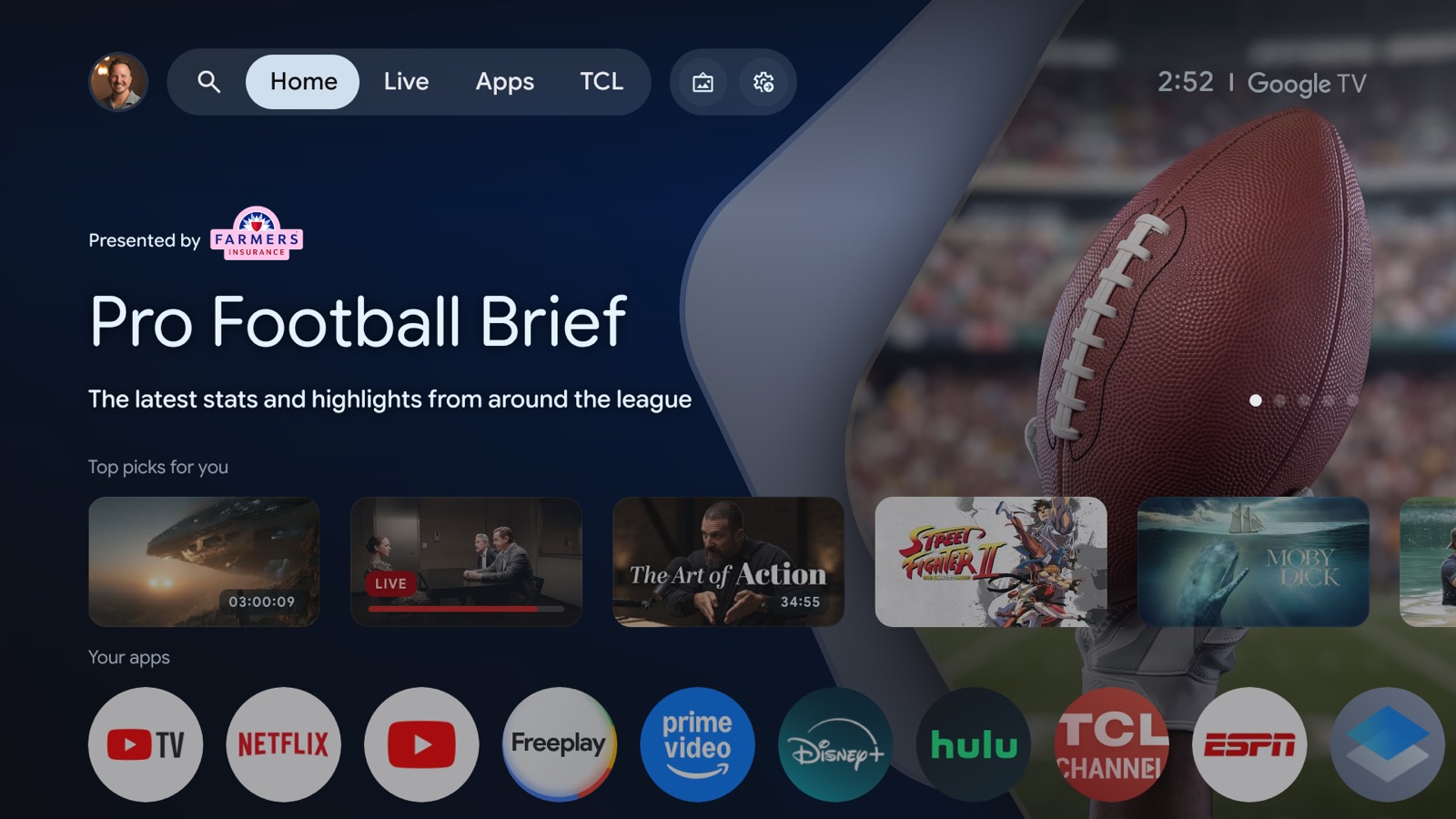
Jay saw people on X pointing Claude at their TVs to strip out the clutter, so he tried it on his own TCL Google TV. Claude switched off the background apps he never uses and built a new home screen with only the apps he watches. Jay never typed a command. Here are the steps, so you can copy them.
The idea
A Google TV is an Android device with a remote. Android has a built-in service door called ADB that lets a computer on your home network send it commands. Claude can use that door from your computer.
Jay's TV has 2 GB of memory. Before the cleanup, about 100 MB of that was free. The stock home screen alone was using around 150 MB, and about 30 TCL packages were installed beside it, many of them running in the background.
The cleanup
Switch off the maker's tracking and promo apps, plus any streaming apps you don't watch. Switched off, never deleted.
The speed
Cut the menu animations to half length. Menus feel quicker right away.
The home screen
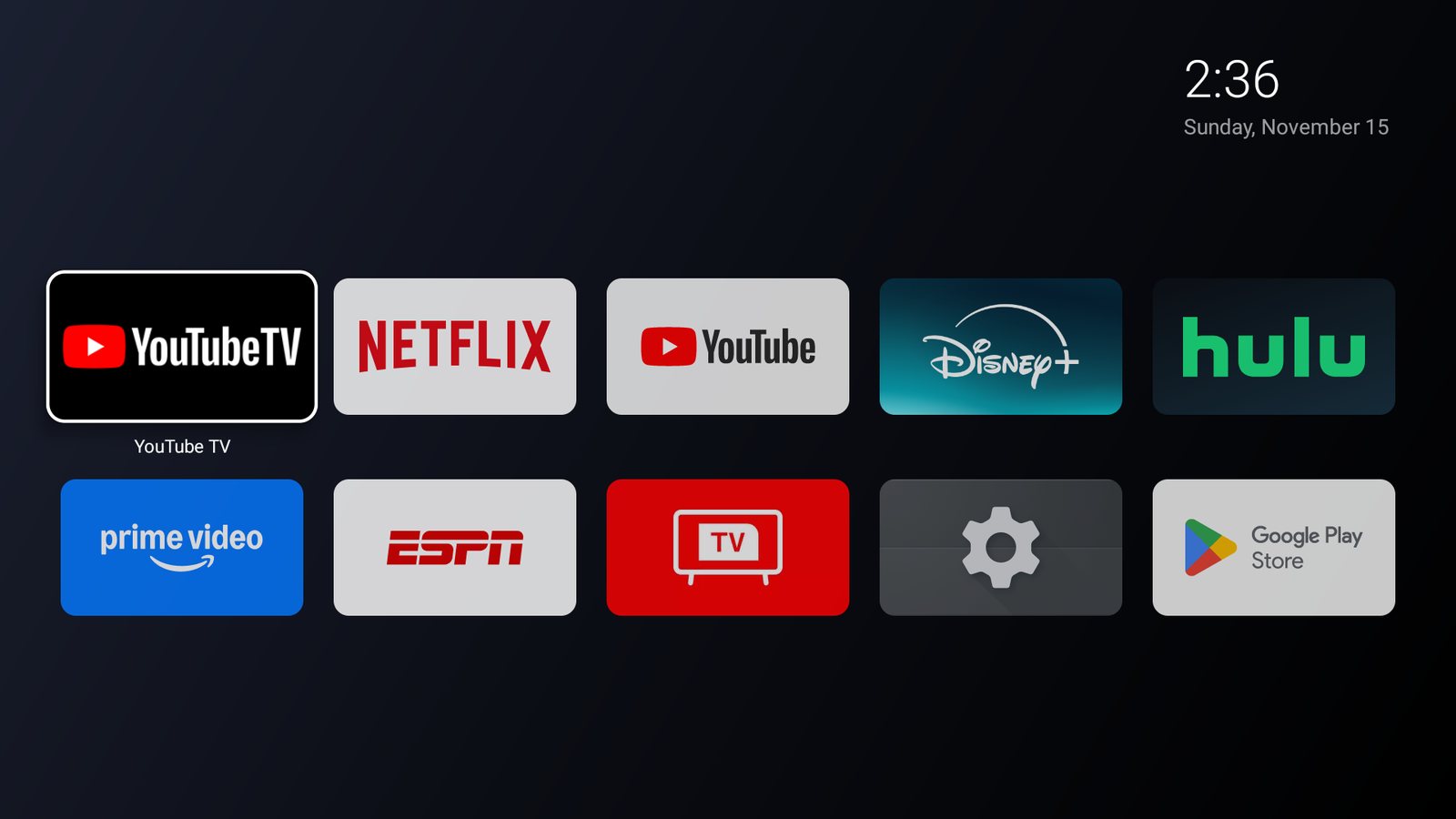
A tiny app with big tiles for your apps, a clock and nothing else. Jay's is 13 KB.
The speed, before and after
| What changed | Before | After |
|---|---|---|
| Home screen memory | About 150 MB | About 25 MB |
| Free memory | About 100 MB of 2 GB | More, once the TV restarted |
| Background apps | About 30 TCL packages, plus apps Jay never opens | 27 switched off |
| Menu animations | Full length | Half length |
| Home screen app | Google TV home, ads and picks | A 13 KB app with 10 tiles and a clock |
What you need
- A Google TV or Android TVTCL, Sony, Hisense, Philips, Xiaomi and many budget sets run it. Roku, Samsung and LG TVs don't, and this won't work on them.
- Claude that can run commandsJay used the Claude desktop app with a folder on his Mac connected. Claude Code works too. Claude in a browser tab can't reach your TV.
- A computer on the same networkThe TV can be on Wi-Fi or plugged in with a cable. Jay's was on a cable and his Mac was on Wi-Fi.
- The TV remoteYou turn on two settings and click Allow once.
- The list of apps you watchJay's was YouTube TV, Netflix, YouTube, Disney+, Hulu, Prime Video and ESPN.
The steps, in order
Turn on developer mode
On the TV, go to Settings, System, About. Click "Android TV OS build" seven times. A message says you're now a developer.
Turn on USB debugging
Go back to Settings, System, Developer options and switch on USB debugging. Despite the name, on most TVs this is what lets a computer connect over the network.
Find the TV's address
Look under Settings, Network and Internet. You want the short one that looks like 192.168.1.222. Ignore the long one that starts with fe80.
Give Claude the address and click Allow
Tell Claude the brand, that it's a Google TV, and the address. The TV shows an "Allow debugging?" box. Tick "Always allow from this computer" and click Allow.
Let Claude look before it touches anything
Claude listed the model, the memory, every installed app and what each one was using. It showed Jay the list of what it wanted to switch off before it changed a thing.
Save the undo file first
Before the first change, Claude saved a file on the Mac with every package it planned to switch off and the command to switch each one back on.
Switch off the clutter
Claude disabled TCL's analytics, promo messages, account service and free-channel apps, a few unused Google apps, Alexa, and seven streaming apps Jay doesn't watch. It left inputs, the remote, settings, system updates, Chromecast and voice search alone. It also left running a handful of TCL services it couldn't identify.
Build the new home screen
Jay asked for something like an Apple TV. Claude wrote a small Android app, built it and installed it on the TV. It sent a screenshot from the TV while the old home screen was still in place.
Make it the default and restart
Claude switched off the stock Google home screen so the Home button opens the new one, restarted the TV and checked it came back up. It pressed the arrow keys, opened Netflix and Settings, and pressed Home again to make sure the remote still worked.
Turn debugging back off
When you're happy, switch USB debugging off in Developer options. Turn it on again any time you want Claude to change something.
A prompt to start with
Do steps 1 to 3 on the TV, then paste this into Claude and fill in the brackets.
Help me clean up and speed up my own Google TV over ADB. It's a [brand and model] at [IP address] on my home network, and USB debugging is turned on.

Work in this order:
1. Connect and tell me the model, Android version, total and free memory, and what's using the most. Don't change anything yet.
2. List the installed apps and background packages. Tell me which ones you're confident are safe to switch off, and which you'd leave alone because you aren't sure.
3. Before any change, save a restore file on my computer that lists every change with the exact command to undo it.
4. Only disable things. Never uninstall. Never touch HDMI and inputs, the remote, settings, system updates or Google Play services.
5. Set the three animation scales to 0.5.
6. I only watch these apps: [your list]. Switch off the other streaming apps but keep their logins.
7. Build a small home screen app with large tiles for just my apps, plus Settings and Inputs. Dark background, a clock, nothing else. Install it and send me a screenshot from the TV before you make it the default.
8. Make it the default home screen, restart the TV, and check that the Home button, the arrow keys and the tiles still work.
9. Tell me what you weren't able to test.
The free AI guide, plus one AI idea a week
One email. Instant access. We never share your address.
Unsubscribe in one click. Privacy policy.
What went wrong, so you can skip it
| Problem | Fix |
|---|---|
| Wrong switch | Jay first turned on "Wi-Fi verbose logging". That one does nothing here. USB debugging is the switch that matters. |
| Wrong address | The network page showed a long address starting with fe80. Claude needed the short one, which was further down the same screen. |
| Claude couldn't reach the TV | The desktop app had no folder connected, so Claude had nowhere to run commands. Adding one folder fixed it. |
| Home button opened a setup screen | With the stock home screen off, Google's setup wizard took over the Home button. Claude switched the wizard off too and the new home screen took its place. |
| First build failed | The first build of the home screen app didn't compile. Claude rewrote part of it and the second build worked. |
| Memory looked the same | Free memory didn't move until the TV restarted. Measure after a restart. |
What you give up
- Google's rowsThe recommendation rows and the profile menu live in the stock home screen, so they go away with it.
- Some permanenceA TV software update can switch things back on. Keep the undo file and the prompt so you can run it again.
- A benchmarkThe memory numbers here are from Jay's one TV, measured before and after with different apps open. Your results will differ.
To go back to stock, re-enable the stock home screen from the undo file, or do a factory reset.
Want help putting AI to work like this in your business or agency?
Book Jay →